Central Price Management
The Challenge
Anyone selling on multiple marketplaces and sourcing goods from various suppliers faces a complex pricing question:
- Each supplier has their own purchase prices that change regularly
- Different suppliers offer the same item at different conditions
- Each supplier has their own ancillary costs (shipping, insurance, discounts)
- Each marketplace has its own fee structures (commissions, shipping costs)
- Each channel needs its own sales prices with marketplace-specific margins
- Prices must be recalculated immediately when the purchase price changes
- The MSRP (Manufacturer's Suggested Retail Price) must not be exceeded
- Safety mechanisms must prevent extreme price jumps
Manually managing this for hundreds or thousands of items is no longer feasible.
The Idea Behind the Price Engine
The merchantCENTRAL Price Engine is an optional calculation module that automates the entire path from supplier purchase price to the final marketplace sales price. It follows three core principles:
-
Best Supplier Wins: If multiple suppliers offer the same item, the lowest net price is automatically determined, taking all ancillary costs into account.
-
Flexible Margin Configuration: Margins can be defined at various levels – global, per price list, per item category, per supplier, or even per individual item. The most specific configuration wins.
-
Full Transparency: Every single price calculation is logged in the calculation log. You can always trace why a specific price was determined.
The Price Engine is not a mandatory module – without it, the hub works with manually maintained prices. Once installed, it automatically takes over calculations via events, without modifying existing logic.
The 11-Step Pipeline Overview
Each price calculation passes through a structured pipeline with 11 steps:
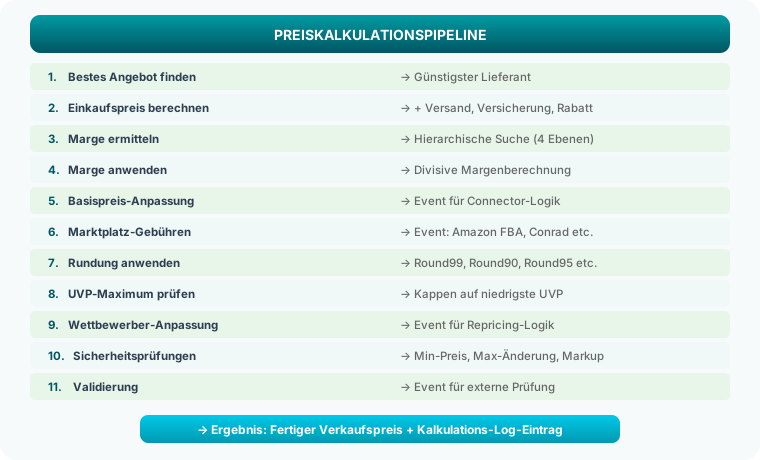
Step 1: Find Best Offer
When multiple suppliers offer the same item, the Price Engine searches for the lowest net price from the Supplier Data Pool. Two optional filters are considered:
- Supplier Filter: Only consider specific suppliers (e.g.,
20200|21002|70030) - Stock Required: Only include suppliers with available stock
Example: Supplier Selection
A scanner is offered by three suppliers:
| Supplier | Net Price | Stock |
|---|---|---|
| Jarltech (20200) | €185.00 | 12 pcs |
| BlueStar (70215) | €192.50 | 8 pcs |
| Systeam (21002) | €178.00 | 0 pcs |
Without "Stock Required": Systeam at €178.00 wins. With "Stock Required": Jarltech at €185.00 wins (Systeam has no stock).
Step 2: Calculate Purchase Price (Supplier Cost Conditions)
The raw net price from the supplier is rarely the actual purchase cost. Suppliers have different conditions: shipping costs, insurance surcharges, and possible discounts. The Supplier Cost Setup table maps these conditions.
Calculation Formula
$$ \text{Purchase Price} = \text{Net} \times (1 - \frac{\text{Discount\%}}{100}) + \text{Shipping}^* + \text{Net} \times \frac{\text{Insurance\%}}{100} $$
Shipping costs are only added if the discounted price is below the minimum order value for free shipping.
Example: Purchase Price Calculation
Supplier Jarltech, item category "POS Systems":
- Net price: €185.00
- Discount: 5%
- Shipping: €6.90
- Free shipping threshold: €250.00
- Insurance: 0.5%
Step by step:
- Apply discount: 185.00 × (1 − 0.05) = €175.75
- Shipping: 175.75 < 250.00 → Shipping + €6.90
- Insurance: 185.00 × 0.005 = + €0.93
- Purchase Price = 175.75 + 6.90 + 0.93 = €183.58
Example: Free Shipping (above threshold)
Supplier BlueStar, item category "Printers":
- Net price: €520.00
- Discount: 3%
- Shipping: €12.50
- Free shipping threshold: €500.00
- Insurance: 0%
Calculation:
- Discount: 520.00 × (1 − 0.03) = €504.40
- Shipping: 504.40 ≥ 500.00 → no shipping (free shipping)
- Insurance: 0%
- Purchase Price = €504.40
Supplier cost conditions can be configured per supplier and per item category. For example, supplier X can have different shipping costs for printers than for accessories.
→ Detailed setup: Supplier Costs
Step 3: Determine Margin (Hierarchical Search)
The Price Engine uses a four-level margin hierarchy. The most specific configuration always wins:
Level 1: Price List + Category + Supplier + Item   (most specific)
    ↓ not found?
Level 2: Price List + Category + Supplier
    ↓ not found?
Level 3: Price List + Category
    ↓ not found?
Level 4: Default margin from Price Calc Setup       (fallback)
Example: Hierarchy in Practice
Setup (Price Calc Setup for price list "SHOP"):
- Default margin: 25%, Rounding: Round99
Category Margins:
| Price List | Category | Supplier | Item | Margin % | Rounding |
|---|---|---|---|---|---|
| SHOP | POS | 20% | Round99 | ||
| SHOP | POS | 20200 | 18% | Round90 | |
| SHOP | POS | 20200 | SCANNER-X1 | 15% | None |
| SHOP | ACCESSORIES | 30% | Round99 |
Hierarchy result:
- Item SCANNER-X1, Supplier 20200, Category POS → 15%, None (Level 1)
- Any POS item, Supplier 20200 → 18%, Round90 (Level 2)
- Any POS item, any supplier → 20%, Round99 (Level 3)
- Item from category "SOFTWARE" (no match) → 25%, Round99 (Level 4, Fallback)
→ Detailed setup: Category Margins
Step 4: Apply Margin (Divisive Margin Calculation)
The Price Engine uses a divisive margin formula (not markup-based). The difference is important:
$$ \text{Sales Price} = \frac{\text{Purchase Price}}{1 - \frac{\text{Margin\%}}{100}} $$
Why Divisive Margin?
With a markup-based calculation (PP × 1.25), the actual margin on the sales price is only 20%. The divisive method ensures that the configured margin exactly represents the share of the sales price.
| Method | Formula | PP = €100, Margin 25% | Actual Margin |
|---|---|---|---|
| Markup (multiplicative) | 100 × 1.25 | €125.00 | 20% of SP |
| Divisive (Price Engine) | 100 / (1 − 0.25) | €133.33 | 25% of SP |
Safety Net: Minimum Amount and Minimum Margin
Two mechanisms prevent cheap items from being sold with too low an absolute margin:
Minimum Amount (Min. Margin Amount): If the percentage margin yields less than the minimum amount, the minimum amount is used as the markup.
Example: Minimum Amount Applies
- PP: €10.00
- Margin: 20% → normal SP = 10 / 0.8 = €12.50 → Margin = €2.50
- Minimum Amount: €5.00
- €2.50 < €5.00 → SP = 10.00 + 5.00 = €15.00
Minimum Margin % (Min. Margin %): A percentage floor that must not be undercut – not even by category margins.
Example: Minimum Margin Applies
- PP: €200.00
- Category Margin: 8% → SP = 200 / 0.92 = €217.39
- Minimum Margin in Setup: 12%
- 8% < 12% → SP = 200 / 0.88 = €227.27
Steps 5–6: Marketplace Adjustments (Events)
After the base price calculation, the pipeline offers two event interfaces through which marketplace connectors can make their own adjustments:
| Step | Event | Example |
|---|---|---|
| 5 | OnAfterCalculateBasePrice |
Connector adjusts base price (e.g., currency conversion) |
| 6 | OnApplyMarketplaceFees |
Amazon FBA fees, Conrad commissions, etc. are added |
These events allow, for example, an Amazon price list to factor in different fees than an Otto price list – without modifying the Price Engine itself.
Step 7: Rounding Rules
The calculated price is rounded according to a configurable method. Rounding can be defined globally in the setup or per category margin.
| Rounding Method | Description | Examples |
|---|---|---|
| None | No rounding, price stays as calculated | €133.33 → €133.33 |
| Round99 | Round down to nearest amount ending in .99 | €133.33 → €132.99, €45.01 → €45.99, €100.00 → €100.99 |
| Round90 | Round down to nearest amount ending in .90 | €133.33 → €132.90 |
| Round95 | Round down to nearest amount ending in .95 | €133.33 → €132.95 |
| Commercial | Standard commercial rounding to 2 decimals | €133.335 → €133.34, €133.334 → €133.33 |
When to Use Which Rounding?
- Round99: Most common in B2C – prices like €49.99 or €132.99 appear cheaper.
- Round90/Round95: For marketplaces with strict pricing requirements.
- Commercial: For B2B price lists where psychological pricing doesn't matter.
- None: When a downstream system handles the rounding.
Step 8: MSRP as Price Ceiling
The Price Engine optionally checks whether the calculated sales price exceeds the lowest list price (MSRP) of all suppliers for this item. If so, the price is capped at the MSRP.
$$ \text{Final Price} = \min(\text{Calculated SP}, \text{lowest MSRP of all suppliers}) $$
Why Is This Important?
Many marketplaces (Amazon, Kaufland, Otto) monitor MSRP compliance. Products offered above MSRP can lead to:
- Listing blocks on the marketplace
- Warnings from brand owners
- Lower rankings in search results
Automatic MSRP capping prevents these issues.
Example: MSRP Capping
A thermal printer is offered by two suppliers:
| Supplier | Net Price | MSRP (List Price) |
|---|---|---|
| Jarltech | €180.00 | €299.00 |
| Toshiba | €175.00 | €279.00 |
Calculation (Margin 25%, Round99):
- Best PP (after costs): €175.00 (Toshiba)
- Margin: 175 / (1 − 0.25) = €233.33
- Rounding: €232.99
- Lowest MSRP: min(299, 279) = €279.00
- 232.99 < 279.00 → no cap needed
- Final Price: €232.99
If the calculation had yielded e.g. €295.00, the price would be capped at €279.00.
Step 9: Competitor Adjustment (Event)
Via the event OnApplyCompetitorAdjustment, marketplace connectors can adjust the price within an allowed range – e.g., for repricing logic on Amazon, where the price is adjusted to match the competition.
Step 10: Safety Checks
Before the calculated price is saved, it goes through three safety checks. If any check fails, the price is rejected and the previous price is retained:
| Check | Setup Field | Description |
|---|---|---|
| Minimum Price | Min. Price | The sales price must not fall below this amount |
| Maximum Price Change | Safety Max Change % | The price change from the previous price must not exceed this percentage |
| Minimum Markup | Safety Min Markup % | The markup on the purchase price must be at least this percentage |
Example: Safety Check – Maximum Change
- Current SP: €150.00
- New calculated SP: €90.00
- Safety Max Change %: 30%
- Price change: (150 − 90) / 150 = 40%
- 40% > 30% → Price is rejected (Result: Rejected)
- Log entry: "Price change 40.00% exceeds safety limit 30.00%"
This prevents a faulty supplier import (e.g., a price accidentally imported without a decimal point) from immediately destroying all marketplace prices.
Example: Safety Check – Minimum Markup
- PP: €100.00
- Calculated SP: €103.00
- Safety Min Markup %: 5%
- Markup: (103 − 100) / 100 = 3%
- 3% < 5% → Price is rejected
Step 11: External Validation (Event)
The event OnValidateCalculatedPrice allows external apps to check or log the price before saving.
Complete Calculation Example
Here is an end-to-end example with all relevant steps:
Complete Example: Barcode Scanner SG-100
Starting data:
- Item: SG-100 (Barcode Scanner)
- Item Category: POS Systems
- Price List: SHOP
Supplier data (Supplier Data Pool):
| Supplier | Net Price | List Price (MSRP) | Stock |
|---|---|---|---|
| Jarltech (20200) | €85.00 | €159.00 | 25 pcs |
| BlueStar (70215) | €89.50 | €159.00 | 14 pcs |
| Wave (21002) | €82.00 | €149.00 | 0 pcs |
Configuration:
- Stock Required: Yes
- Supplier Costs Jarltech/POS: Discount 3%, Shipping €5.90, Threshold €200, Insurance 0.5%
- Category Margin SHOP/POS: 22%, Min. Amount €8.00, Rounding Round99
- MSRP Maximum: Yes
- Safety Max Change %: 25%
- Current SP: €119.99
Step 1 – Best Offer: Wave has no stock → excluded. Jarltech (€85.00) < BlueStar (€89.50) → Jarltech wins.
Step 2 – Calculate Purchase Price:
- Discount: 85.00 × (1 − 0.03) = €82.45
- Shipping: 82.45 < 200.00 → + €5.90
- Insurance: 85.00 × 0.005 = + €0.43
- Purchase Price = 82.45 + 5.90 + 0.43 = €88.78
Step 3 – Determine Margin: Search: SHOP + POS + 20200 + SG-100 → not found Search: SHOP + POS + 20200 → not found Search: SHOP + POS → found: 22%, Min. €8.00, Round99
Step 4 – Apply Margin:
- SP = 88.78 / (1 − 0.22) = 88.78 / 0.78 = €113.82
- Margin = 113.82 − 88.78 = €25.04
- 25.04 > 8.00 (Minimum Amount) → OK, no adjustment
Step 7 – Rounding (Round99):
- 113.82 → €112.99
Step 8 – MSRP Maximum:
- Lowest MSRP: min(159.00, 159.00, 149.00) = €149.00
- 112.99 < 149.00 → no cap needed
Step 10 – Safety Check:
- Price change: |119.99 − 112.99| / 119.99 = 5.83%
- 5.83% < 25% → OK
Result: ✅ Final Price = €112.99
Log entry:
| Field | Value |
|---|---|
| Item No. | SG-100 |
| Vendor No. | 20200 |
| Net Price | 85.00 |
| Purchase Price | 88.78 |
| Sales Price | 112.99 |
| Margin % | 22.00 |
| Margin Amount | 24.21 |
| Rounding | Round99 |
| List Price Cap | No |
| Previous Price | 119.99 |
| Price Change % | -5.83 |
| Result | Success |
Automatic Recalculation
The Price Engine reacts automatically to changes in the Supplier Data Pool. When a supplier import delivers new prices, the entire pipeline runs for each affected item:
Automatic Supplier Import (e.g., Jarltech CSV)
        │
        ▼
  Supplier Data Pool
  (New net price from €85.00 → €92.00 detected)
        │
        ▼  Event: OnAfterInsertSupplierData (PriceChanged = true)
        │
  Price Engine
        │
        ├── 1. Re-determine best offer
        │      (possibly a different supplier is now cheapest)
        │
        ├── 2. Calculate purchase price (with ancillary costs)
        │
        ├── 3. Update purchase price list
        │      (BC Purchase Price List, with date history)
        │
        ├── 4. Calculate sales price
        │      (Margin + Rounding + MSRP Check + Safety)
        │
        └── 5. Update sales price list
               (BC Sales Price List)
                │
                ▼
        Marketplace Item: Set Price Update Flag
                │
                ▼
        Connector synchronizes new price to marketplace
The entire process is fully automatic – from supplier import to marketplace price update. No manual intervention is required.
Manual Recalculation
In addition to automatic calculation, you can trigger a manual recalculation via the Price Calculation Setup page:
- For one price list: Action "Recalculate Prices" on the selected setup record
- For all price lists: Action "Calculate All Price Lists"
- For a single item: Via BatchRecalculation with an item filter
BC Price List Integration
The Price Engine uses native BC price lists (Sales Price List / Purchase Price List) and creates them automatically:
Purchase Price List
- A separate price list is maintained per supplier
- Contains the net purchase prices of all items from that supplier
- Updated with each supplier import
- Date-based historization: When a price changes, the old line is closed with an end date and a new line is created with the current date – so previous prices remain traceable
Sales Price List
- A separate price list is maintained per configuration (e.g., SHOP, AMAZON-B2B)
- Automatically calculated from PP + Margin + Rounding + MSRP
- Marketplace connectors read the current sales price from this price list
- Uses a Customer Price Group for assignment
Multiple Price Lists / Sales Channels
A common scenario: You sell the same item on multiple channels with different margins. The Price Engine supports this through separate Price Calc Setups:
Example: Different Channels
| Price List | Description | Margin | Rounding | MSRP Max |
|---|---|---|---|---|
| SHOP | Own Webshop | 20% | Round99 | Yes |
| AMAZON-B2C | Amazon B2C | 28% | Round99 | Yes |
| OTTO | Otto Market | 25% | Round90 | Yes |
| B2B-DIRECT | Direct B2B Sales | 12% | Commercial | No |
For item SG-100 (PP €88.78) the results would be:
| Channel | Calculation | Rounded | Final Price |
|---|---|---|---|
| SHOP | 88.78 / 0.80 = 110.98 | 110.99 | €110.99 |
| AMAZON-B2C | 88.78 / 0.72 = 123.31 | 122.99 | €122.99 |
| OTTO | 88.78 / 0.75 = 118.37 | 117.90 | €117.90 |
| B2B-DIRECT | 88.78 / 0.88 = 100.89 | 100.89 | €100.89 |
Fixed Prices
For individual items, you can override the automatically calculated price by setting the Price Fixed flag in the Marketplace Item Card. The Price Engine then skips this item during automatic calculation, and the manually entered price is retained.
This is useful for:
- Promotional prices: Time-limited special offers
- Special conditions: Individually negotiated prices with the marketplace
- New products: Manual pricing at market launch
- MSRP-bound items: Products with price binding
Calculation Log
Every single price calculation is logged in the calculation log. The log contains all details needed for traceability:
| Field | Description |
|---|---|
| Entry No. | Unique sequential number |
| Calculation Date/Time | Time of calculation |
| Result | Outcome: Success, No Offer, Rejected, Error |
| Price List Code | The affected price list (e.g., SHOP) |
| Item No. | The item number |
| Vendor No. | The selected supplier (best offer) |
| Net Price | Net supplier price (before ancillary costs) |
| Purchase Price | Calculated purchase price (after ancillary costs) |
| Sales Price | Final sales price |
| Margin % | Applied margin percentage |
| Margin Amount | Absolute margin in euros |
| Rounding Method | Rounding method used |
| List Price Cap Applied | Was the price capped to MSRP? |
| Previous Price | Previous price (before this calculation) |
| Price Change % | Price change in percent |
| Result Details | Details on rejection or error |
Color Coding
The log uses color codes for quick overview:
- 🟢 Success (green): Price successfully calculated and saved
- 🟡 No Offer / Rejected (yellow): No offer found or safety check failed
- 🔴 Error (red): Error during calculation
Log Cleanup
Via the actions on the log page, you can:
- Delete All Entries: Clear the entire log (with confirmation dialog)
- Delete Old Entries: Remove entries older than 30 days
→ Detailed description: Calculation Log
Interaction in the Hub Model
┌──────────────────┐     ┌──────────────────┐     ┌──────────────────────┐
│ 13+ Supplier     │────→│ Supplier Data    │────→│ Price Engine         │
│ Connectors       │     │ Pool             │     │ (11-Step Pipeline)   │
│                  │     │                  │     │                      │
│ Jarltech         │     │ • Net prices     │     │ • Best offer         │
│ BlueStar         │     │ • MSRP/List pr.  │     │ • PP calculation     │
│ Systeam          │     │ • Stock levels   │     │ • Margin + Rounding  │
│ Wave             │     │ • Manufacturer   │     │ • MSRP check         │
│ VEDES            │     │   data           │     │ • Safety checks      │
│ Toshiba          │     └──────────────────┘     └──────────┬───────────┘
│ GoDEX            │                                         │
│ Sato             │                                         ▼
│ ...              │                                ┌────────────────┐
└──────────────────┘                                │ BC Price Lists │
                                                    │ PP + SP        │
                                                    └────────┬───────┘
                                                             │
                                            ┌────────────────┼────────────────┐
                                            ▼                ▼                ▼
                                       ┌─────────┐    ┌──────────┐    ┌──────────┐
                                       │ SHOP SP │    │AMAZON SP │    │ OTTO SP  │
                                       │ €110.99 │    │ €122.99  │    │ €117.90  │
                                       └─────────┘    └──────────┘    └──────────┘
Frequently Asked Questions
What happens if the Price Engine is not installed?
Without the Price Engine, the hub works with manually maintained prices. The hub events (OnCalculateSalesPrice, OnCalculatePurchasePrice) are fired, but nobody responds to them. Prices must then be maintained manually in the BC price lists.
What happens if no supplier has an offer?
If no supplier offers the item (or all are filtered out), the result No Offer is logged. The existing price remains unchanged.
Can I set a different margin for a single item than for the category?
Yes, via the four-level margin hierarchy. Create an entry in the category margins with the specific combination of price list + category + supplier + item number.
What happens with a faulty supplier import?
The safety checks (Max Change %, Min Markup %) catch extreme price jumps. If an import accidentally contains a price of €1,000 instead of €100, the price change is detected as too high and rejected.
Can a price be lower than the purchase price?
The safety check Min Markup % prevents this. Set this value to e.g. 5% to ensure the sales price is always at least 5% above the purchase price.
How often are prices recalculated?
Automatically with every supplier import that detects a price change. Additionally, you can trigger a manual batch recalculation at any time.
Related Pages
- The Hub Model – Overview of the hub architecture
- Suppliers & Item Pool – How supplier data flows in
- Central Item Pool – Where calculated prices are stored
- Price Calculation Setup – Setup the Price Engine
- Category Margins – Configure margins per product group
- Supplier Costs – Ancillary costs per supplier