Shipping Integration
One Shipping System for All Carriers
In a classic multi-channel scenario, you create shipping labels via the portal of each carrier – DHL Business Customer Portal, DPD MyDPD, GLS ShipIT, UPS Worldship, and so on. With five carriers, that means five different logins, five different interfaces, and tracking numbers must be manually assigned to orders.
merchantCENTRAL unifies this: One dialog, all carriers.
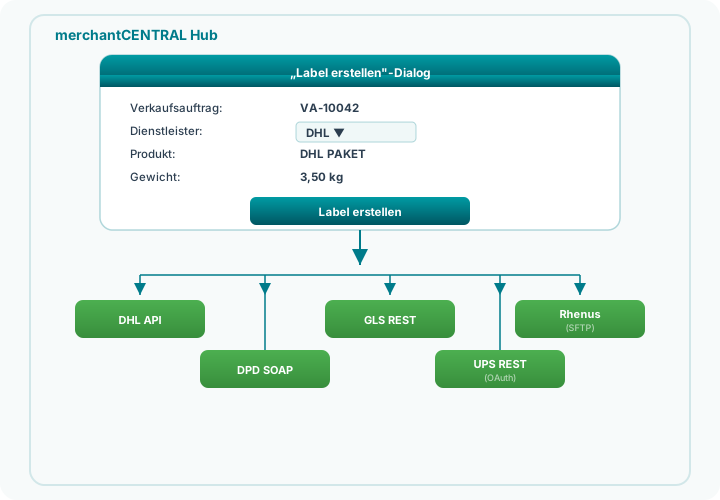
The Label Creation Process
Step 1: Request Label
The Create Label dialog is opened from the sales order (or via the Shipping Label List). The hub automatically populates:
- Delivery address from the sales order
- Weight from the item master data
- Carrier based on configuration or last usage
Step 2: Hub Delegates to Connector
The hub fires the event OnCreateShipmentLabel. The responsible carrier connector responds:
| Carrier | Connector | Technology |
|---|---|---|
| DHL | ALN MCDHL | REST API v2 |
| DPD | ALN MCDPD | SOAP/XML |
| GLS | ALN MCGLS | REST API v3 |
| UPS | ALN MCUPS | REST API (OAuth 2.0) |
| Rhenus | ALN MCRH | BORD512 Flat-File via SFTP |
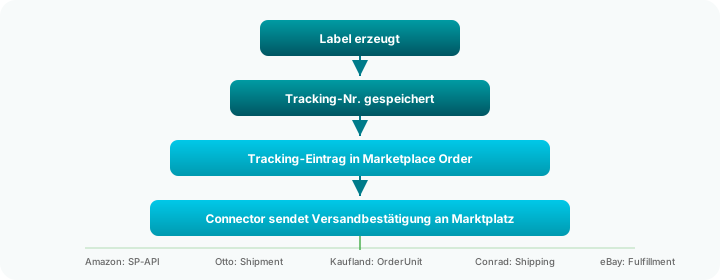
Step 3: Receive and Store Label
The connector calls the carrier API and receives: - Tracking number (shipment number) - Label data (PDF or ZPL as Blob) - Optionally return labels, customs documents, COD labels
Everything is stored in the central table ALN MC Shipment Label.
Step 4: Auto-Link Tracking
The hub automatically creates a Tracking Entry in the Marketplace Order. The marketplace connectors detect new tracking entries and send the shipping confirmation back to the respective marketplace API.
Supported Features per Carrier
| Feature | DHL | DPD | GLS | UPS | Rhenus |
|---|---|---|---|---|---|
| Create Label | ✓ | ✓ | ✓ | ✓ | ✓ |
| Bulk Labels | ✓ (up to 30) | – | – | – | – |
| Cancel Label | ✓ | – | ✓ | ✓ | – |
| Return Label | ✓ | – | ✓ | – | – |
| End of Day | ✓ | – | ✓ | – | – |
| PDF Label | ✓ | ✓ | ✓ | ✓ | – |
| ZPL Label | ✓ | – | ✓ | ✓ | – |
| Customs Documents | ✓ | – | – | – | – |
| Cash on Delivery | ✓ | – | – | – | – |
| Connection Test | ✓ | ✓ | ✓ | ✓ | ✓ |
Carrier Products
Each carrier offers different shipping products:
DHL
- V01PAK – DHL PAKET (domestic)
- V53WPAK – DHL PAKET International
- V54EPAK – DHL Europaket
- V62KP – DHL Kleinpaket (small parcel)
- V66WPI – Warenpost International
DPD
- CL – DPD Classic
- E830 / E12 / E18 – DPD Express
- IE2 – DPD International Express
- PL – DPD ParcelShop
GLS
- PARCEL – BusinessParcel (domestic/EU/international)
- EXPRESS – ExpressParcel
UPS
- 11 – UPS Standard
- 07 – UPS Express
- 65 – UPS Express Saver
Rhenus
- LTL (Less Than Truckload) via BORD512 format
- Multiple packages (colli) per shipment
Automatic Carrier Mapping
The hub automatically recognizes the associated carrier based on tracking number patterns:
| Carrier | Tracking No. Pattern | Example |
|---|---|---|
| DHL | Starts with 00, 12-20 digits |
00340434161094042557 |
| DPD | 14 digits numeric | 01234567890123 |
| GLS | Starts with a digit, 11-12 digits | 12345678901 |
| UPS | Starts with 1Z |
1Z999AA10123456784 |
| Hermes | 12-16 digits, various formats | H1234567890123456 |
This mapping is used when a tracking number comes from an external source (e.g., dropshipping) and the correct carrier needs to be assigned.
Print Service (Optional)
If the optional app merchantCENTRAL Print Service is installed, labels can be automatically printed after creation:
| Label Format | Print Path |
|---|---|
| HTTP POST → ECIService → Windows Printer | |
| ZPL | HTTP POST → ECIService → Zebra Thermal Printer (TCP/IP) |
The Print Service reacts to the hub event OnAfterCreateShipmentLabel and automatically sends the label to the configured printer.
Related Pages
- The Hub Model – Overview of the hub architecture
- Order Management – How orders are imported
- Shipping Providers – Manage all carriers
- Provider Card – Configure a carrier
- Create Label – The label creation dialog
- Shipping Labels – View all labels
- Package Tracking – Monitor tracking status