Unified Order Management
The Challenge
Without a hub model, multi-channel selling means: Every marketplace has its own order process. Amazon delivers order data via its SP-API, Otto uses REST endpoints, Kaufland has its own Order APIs, and your own Shopware shop works differently again. The result: different formats, different workflows, different sources of error.
The Solution: One Central Order Import
merchantCENTRAL solves this problem with the ALN MC Order Import – a unified order import service used by all marketplace connectors.
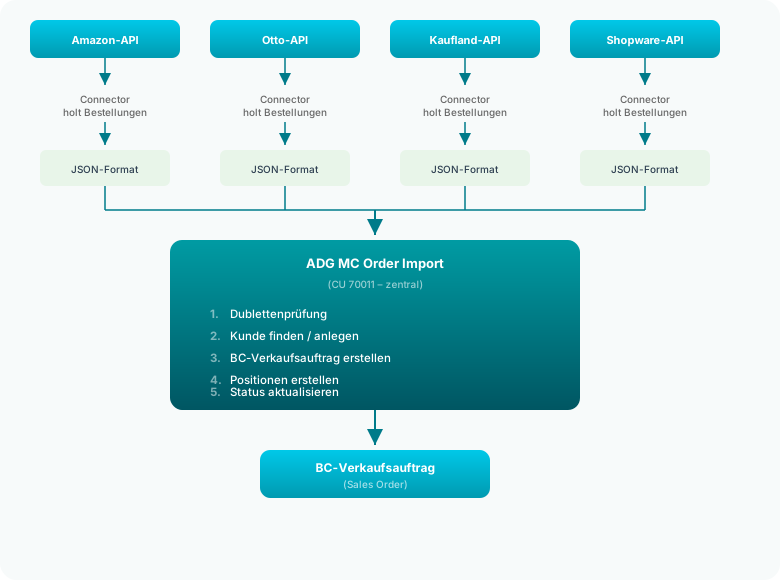
The Standard Process
Step 1: Connector Fetches Orders
Each marketplace connector calls the respective marketplace API and converts the received order data into a standardized JSON format. This format is identical for all channels.
Step 2: Duplicate Check
The central Order Import checks based on the combination Marketplace Code + External Order Number whether this order has already been imported. This reliably prevents duplicate imports.
Step 3: Create Marketplace Order
The order is stored in the central table ALN MC Marketplace Order – with all relevant data:
| Field | Description |
|---|---|
| Marketplace Code | The channel the order came from |
| External Order Number | The order number on the marketplace |
| Reference Number | Alternative reference if applicable |
| Customer Name | Name of the buyer |
| Order Date | When the order was placed |
| Import Timestamp | When the order was imported |
| Status | Imported / Error / Completed |
| Total Amount | Gross amount of the order |
| Shipping Costs | Separate shipping cost portion |
| Currency | Order currency |
| Payment Method | How the customer paid |
| Delivery Address | Name, Street, Postal Code, City, Country |
| Order JSON | The complete raw data (Blob) |
Step 4: Create BC Sales Order
From the Marketplace Order, a Business Central Sales Order is automatically created:
- Customer Assignment: The hub searches for an existing BC customer by email or name. If none is found, a new contact/customer can be created automatically.
- Order Header: Customer, delivery address, payment terms, shipping method are set.
- Order Lines: The ordered items are created as sales lines.
- Link: The BC sales order number is stored in the Marketplace Order.
Step 5: Report Status
After successful import, the status is set to Imported. If an error occurs (e.g., item not found, customer cannot be created), the status is set to Error and the error message is stored.
Advantages of the Unified Import
One Workflow for Everything
Regardless of whether the order comes from Amazon, Otto, Kaufland, or your own shop – in the warehouse and in accounting it always looks the same: as a standard BC sales order.
Unified Error Handling
Errors are displayed centrally in the Marketplace Order List. You don't need to check five different marketplace portals but can see all problems in one place.
Traceability
Every order is stored with its complete raw data (JSON blob). If there are discrepancies, you can always check what the marketplace actually delivered.
Automation via Job Queue
The connectors can be configured via Job Queue to import new orders automatically every 15 minutes – without manual intervention.
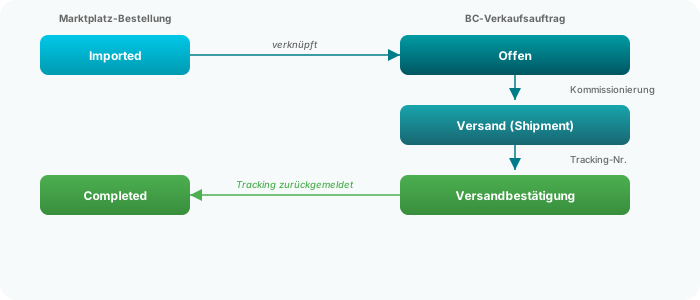
Order Lifecycle
Tracking Entries
When a sales order is shipped and a tracking number is generated (via the Shipping System), the hub automatically creates a Tracking Entry:
| Field | Description |
|---|---|
| Marketplace Order No. | Link to the Marketplace Order |
| Tracking No. | The shipment number from the carrier |
| Tracking URL | Link to shipment tracking |
| Carrier Code | DHL, DPD, GLS, UPS, Rhenus |
| Shipping Date | When the shipment was dispatched |
| Sync Status | Whether the shipping confirmation has been sent to the marketplace |
The marketplace connectors retrieve these tracking entries and send the shipping confirmation back to the respective marketplace API.
Related Pages
- The Hub Model – Overview of the hub architecture
- Marketplace Order List – View all orders
- Order Details – View a single order in detail
- Tracking Entries – Manage shipping confirmations
- Shipping Integration – How labels and tracking work